How to Log Out of Zangi App? A Simple Guide for Android and iPhone (2026)
As human beings, we weren’t meant to be glued to our mobile screens for hours at a time. There always comes a moment when we need to put the phone down—whether it is to focus on other important work or simply to take a break. Sometimes, our needs change, and we have to log out of one account to switch to another. But do you think this process is the same for every app?
Most of the app is so simple, but here we are talking about the Zangi App. Logging out of Zangi is quite different from logging out of some famous apps like Facebook or WhatsApp. Because Zangi is a serverless app, your messages are kept only on your phone, not on a giant company’s servers. As your teacher for today, I will show you how to log out safely so you can enjoy your break without losing your precious memories.”
The Difference Between “Log Out” and “Delete”
Before we start, we must understand two important words.
Pro Tip: Only use “Delete Account” if you never want to use that Zangi number again!
How to Log Out on Android and iPhone
The steps are almost exactly the same for both types of phones. Follow these simple steps:
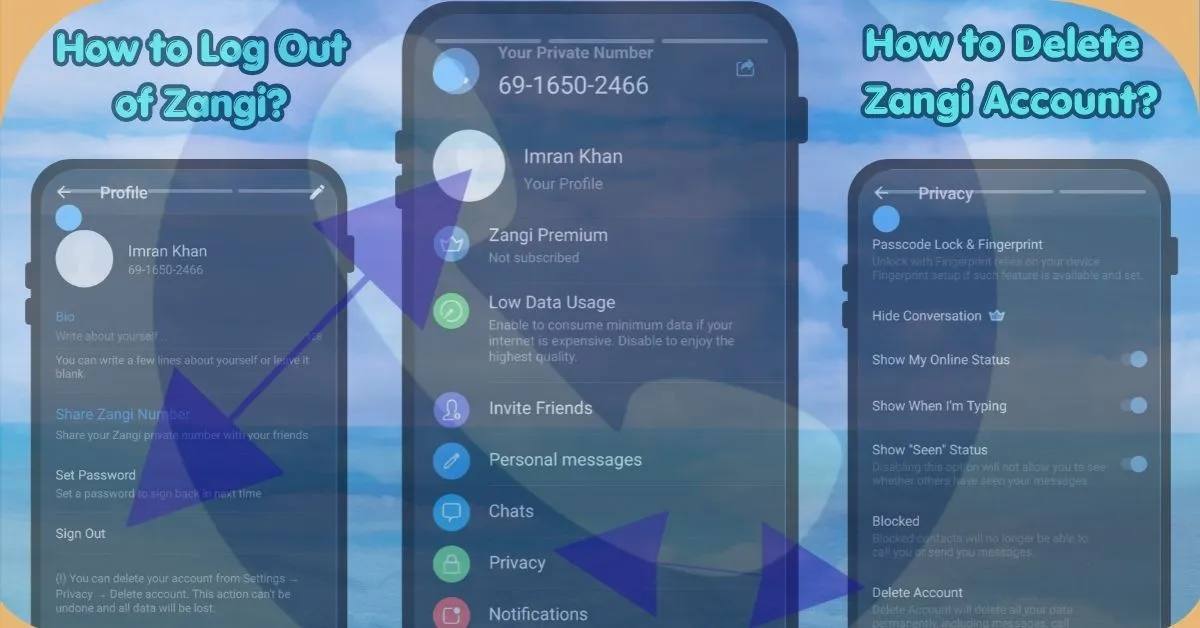
Step 1: Go to Settings Open your Zangi app and look for the Settings icon. It looks like a small gear wheel at the bottom of your screen.
Step 2: Tap on Your Profile at the very top of the settings menu, you will see your name and your Zangi number. Tap on your name (your profile).
Step 3: Find the Sign Out Button Scroll to the bottom of your profile page. You will see a button that says “Sign Out.”
Step 4: The Most Important Choice (Keep History) When you click Sign Out, Zangi will ask you a very important question: “Do you want to keep your history?”
- Always choose YES if you want your messages to be there when you log back in on the same phone.
Pro Tip: If you choose “Delete History,” your chats will be erased from your phone forever.
How to Deactivate or Delete Your Zangi Account
If you have decided to leave Zangi permanently, you can deactivate your account through the privacy settings.
FAQs
Conclusion: Peace of Mind
In 2026, we all deserve a “Digital Break” sometimes. Knowing how to log out safely gives you peace of mind. You can step away from your screen, knowing that your private conversations are locked away safely on your phone, waiting for your return.
Stay safe, and enjoy your quiet time!